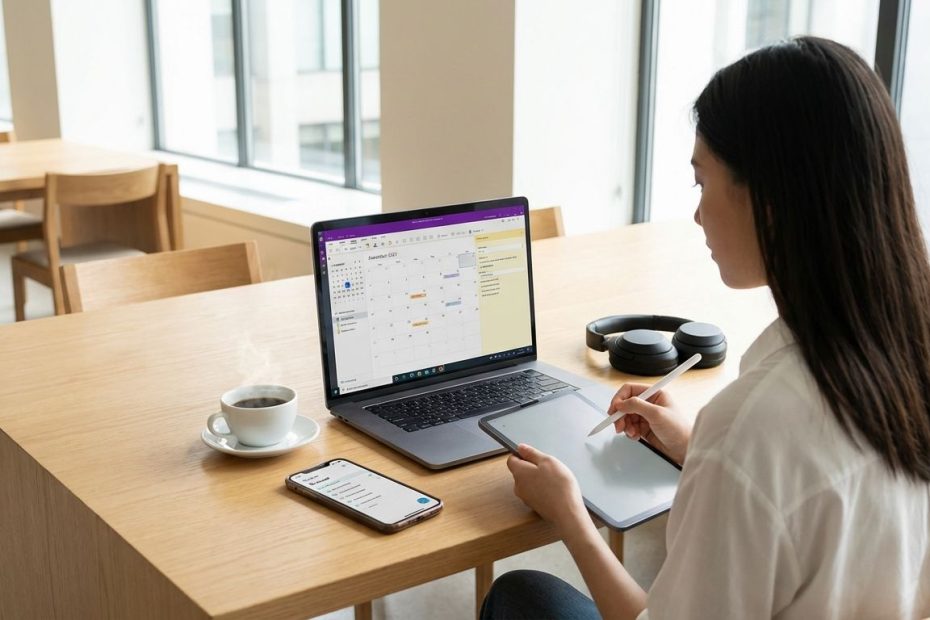
Digital productivity tools help you capture notes, track deadlines, organize class materials, and manage schoolwork without relying on scattered notebooks, sticky notes, and memory alone. The best app is the one that fits the way you study, plan, and submit work every week.
If you want better control over assignments, lecture notes, group projects, and exam prep, the right tools can remove friction from your day. This guide breaks down the most useful student productivity apps, shows where each one fits, and helps you choose a setup you will actually keep using.
What Are The Best Apps For Students To Stay Organized?
The strongest student productivity apps fall into a few clear categories. You have all-in-one workspaces like Notion, structured note systems like Microsoft OneNote, lightweight planning tools like Google Tasks and Google Calendar, visual project boards like Trello, and specialist note apps like Goodnotes and Obsidian. That matters because staying organized is rarely one job. You may need to collect reading notes, manage deadlines, plan weekly study blocks, and coordinate shared work with classmates.
Notion stands out when you want one place for class dashboards, assignment databases, reading trackers, meeting notes, and semester planning. Microsoft OneNote works better when your brain prefers a subject-by-subject notebook structure with clear pages and subpages. Google Tasks and Google Calendar work well when you want something fast and simple that lives inside the tools many schools already use. Trello earns a place when visual task movement helps you focus. Goodnotes and Obsidian become valuable when note-taking style matters more than task management.
The strongest recommendation is not a universal winner. It is a fit-based decision. If you spend more time planning than writing, you need a planning-first app. If you spend more time taking lecture notes and reviewing them, you need a notes-first app. If you manage team assignments, lab work, club responsibilities, and deadlines across courses, you need stronger project visibility than a standard checklist can offer.
Students often fail with productivity systems for one reason: too much setup. A tool can offer templates, automations, and polished design, yet still become a burden if it takes too long to maintain. The most effective student setup is usually the one that removes decisions, shortens capture time, and makes deadlines visible at a glance.
Is Notion Or OneNote Better For Students?
If you want a direct answer, Notion is better for planning, tracking, and building a central academic dashboard. Microsoft OneNote is better for straightforward note-taking organized by class, topic, and lecture. That difference matters more than feature volume. Many students do not need the most customizable system. They need the one they can open quickly and use without friction during a busy week.
Notion works best when you want to combine multiple academic functions in one workspace. You can keep a course hub, attach assignment statuses, build exam countdowns, save lecture notes, track readings, and share project pages with classmates. Eligible students can also access education benefits through Notion for Education, which makes the platform more appealing when budget matters. If your school life includes classes, extracurricular work, applications, research, and content planning, Notion gives you room to organize it in one system.
Microsoft OneNote is the better pick when your main problem is keeping notes sorted and searchable. Its structure is intuitive: notebooks, sections, pages, and subpages. That mirrors how many students already think about subjects and units. You do not need to build your own architecture before taking useful notes. You open a notebook, choose a section, and start writing.
There is also a cognitive load difference. Notion gives you flexibility, but that flexibility can slow you down if you spend more time designing pages than using them. OneNote reduces that problem with a simpler structure. If you are the kind of student who abandons planning systems after two weeks, OneNote may serve you better. If you like dashboards, linked databases, and a workspace that can grow with your schedule, Notion has the edge.
A practical rule works well here. Choose Notion if you need one command center for school and beyond. Choose OneNote if you want dependable note organization with minimal setup. That distinction is more useful than forcing a winner across every learning style.
What Is The Best Free Planner App For Students?
For most students, Google Tasks paired with Google Calendar is the best free planner setup. It is fast, lightweight, and easy to maintain. You can create lists, assign due dates, repeat recurring tasks, and see scheduled items in your calendar workflow. If your school runs on Google Workspace, that convenience multiplies because your planning system stays close to your email, documents, and shared class materials.
This matters more than students often realize. A planner only works when you update it. Google Tasks lowers that barrier by letting you add a task while checking mail, reviewing a document, or looking at your week in Google Calendar. That keeps deadlines visible without asking you to move into a separate, complex system every time you remember a new responsibility.
Trello is another strong free option, especially if you prefer a visual planning style. Instead of a linear task list, Trello uses boards and cards. That helps when you want to see work move from assigned to in progress to submitted. It is useful for coursework with multiple steps, long-term projects, and team-based assignments where accountability matters.
Notion also deserves mention here because its free tier is capable, and eligible students may get more through education access. Still, from a pure free-planner angle, Google Tasks and Google Calendar win on simplicity. Trello wins on visual project tracking. Notion wins on customization. Your best choice depends on whether you need speed, visibility, or flexibility.
If you miss deadlines because planning feels annoying, choose Google Tasks and Google Calendar. If you lose track of multistep assignments, choose Trello. If you want a planner that doubles as a student dashboard with notes and databases, choose Notion. Those three cover most student planning needs without forcing you into a paid subscription right away.
Which App Is Best For Note-Taking And Class Materials?
The safest all-purpose recommendation is Microsoft OneNote. It handles typed notes, organized class structures, and searchable academic material with very little setup. If your goal is to keep lecture content, readings, study guides, and revision notes organized by subject, OneNote is one of the most dependable options available. It fits students who need a digital binder more than a customizable workspace.
Goodnotes is a strong pick when handwritten notes are central to your workflow, especially on Apple devices. If you annotate Portable Document Format files, solve equations by hand, mark up slides, or prefer a stylus over a keyboard, Goodnotes fits that process better than a typical text-based note app. It also supports features tied to handwritten workflows and imported documents, which matters in courses where visual annotation is part of studying rather than an extra step.
Obsidian serves a different kind of student. It is less about reproducing a paper notebook and more about building a connected personal knowledge base. Notes are stored locally in Markdown, and the app is useful when your coursework depends on linking ideas across readings, lectures, and long-form writing. Graduate students, research-heavy majors, and writing-focused students often get more from Obsidian than from standard note apps because it supports deeper organization over time.
The decision comes down to note style. If you want dependable structure and easy subject organization, choose OneNote. If you write by hand and annotate heavily, choose Goodnotes. If you want linked thinking and long-term knowledge management, choose Obsidian. That division helps avoid the common mistake of judging every note app by the same standard.
There is also a retention factor. Students tend to keep using note tools that match how they already study. A keyboard-first student rarely sticks with a handwriting-first app. A tablet-heavy student often finds standard typing apps too rigid. A research student may outgrow flat notes quickly. Matching the tool to your study method is what keeps the system useful beyond the first month of the semester.
Can One App Manage Assignments, Deadlines, And Group Projects?
Yes, one app can manage all of that, but only if your workload justifies a more advanced setup. Notion, Trello, Asana, and ClickUp can all handle assignments, due dates, collaboration, and project tracking. The real issue is not whether they can do it. The issue is whether you will maintain the system once classes become busy. A powerful app loses value when it adds admin work to an already full schedule.
Notion is one of the best choices for solo students who want a unified workspace. You can build a semester dashboard, connect assignment databases to calendars, store lecture notes, track reading progress, and keep project documents in one place. If you want one home base for academic life, it is one of the strongest options available. The value increases when your work crosses categories, with classes, side projects, internships, and student organizations all running at once.
Trello works better when your assignments move through clear stages. A visual board makes progress visible. That is useful for essays, research projects, presentations, and group assignments where you need to know what is waiting, what is underway, and what is done. When several people are involved, that visual clarity can reduce missed handoffs and duplicated effort.
Asana and ClickUp are stronger when your projects start to resemble professional workflows. Student clubs, capstone teams, campus organizations, and startup-style student groups may benefit from those tools more than the average individual student. ClickUp offers a broad free plan, but it can feel feature-heavy if you only need a study planner. Asana can work well for teams, especially where task ownership and timeline visibility matter, but it is often more than a solo student needs.
The right recommendation is practical. Use one advanced app when your workflow includes multiple projects, recurring deadlines, shared tasks, and long time horizons. Use a lighter stack when your needs are simpler. A notes app plus Google Calendar can outperform an all-in-one platform if the heavier platform becomes a chore to manage.
What Apps Work Best If You Already Use Google Workspace?
If your school runs on Google Workspace, the easiest productivity stack is Google Calendar, Google Tasks, and Google Keep. That combination reduces friction because it works inside tools you already open every day. You do not need to build a separate digital ecosystem just to stay organized. The tools fit into your class email, documents, shared files, and calendar view with minimal setup.
Google Tasks is the core planning layer in that setup. It lets you create lists, add details, assign due dates, and manage recurring work. The value comes from proximity. When you spot a deadline in Gmail or while working in a Google Docs file, you can turn it into a task without interrupting your workflow. That matters during busy weeks when organization breaks down because capture is too slow.
Google Calendar adds time awareness to your task list. It helps you separate fixed commitments from flexible work, which is one of the most important habits in student time management. Many students keep a list of tasks but never schedule the time to complete them. Calendar closes that gap. Once deadlines and study blocks appear on the same screen, your week becomes easier to manage and harder to misread.
Google Keep supports fast capture. It is useful for class reminders, reading prompts, office-hour questions, discussion ideas, and temporary checklists. Labels, pinning, color coding, and quick note entry make it a practical scratchpad when you do not want every thought to become a formal task or a structured note. That makes Keep a useful companion rather than a full replacement for a notes app.
This Google-centered setup is best for students who value speed over customization. It will not replace every advanced project management platform, but it handles the basics well. If your academic life already sits inside Google products, adding more tools than necessary can create clutter instead of clarity.
Are Paid Productivity Apps Worth It For Students?
Paid productivity apps are worth it when the upgrade removes a weekly bottleneck, saves time, or replaces several weaker tools. They are not worth paying for just because they look polished or popular. Students get the best return when a paid feature solves a real problem, with better device sync, improved storage, stronger collaboration, handwritten note support, or a layout that fits daily academic work.
That is why the free tier should usually come first. Trello, Google Tasks, Google Calendar, Microsoft OneNote, and the core version of Obsidian all give you enough room to build a reliable student system without paying. Notion also becomes more appealing when student education access applies. Starting free lets you see where the friction actually appears. If you do not hit a real limitation, there is no reason to upgrade.
Goodnotes is a strong paid choice for students who write by hand every day and rely on tablet-based annotation. Obsidian Sync makes sense when you want consistent multi-device access and a smoother experience across your note library. Trello paid plans become useful when free board limits or advanced collaboration needs start getting in the way. Evernote can still fit heavier note workflows, though its pricing makes it harder to recommend broadly when several strong alternatives exist at lower cost or with stronger free access.
The strongest buying rule is simple: pay after pain appears, not before. If your current app already handles notes, tasks, deadlines, and review, adding cost will not suddenly improve discipline. If your workflow breaks because of storage limits, missing sync, poor organization, or weak collaboration, the right paid tier can be a smart upgrade. The purchase should follow a proven need, not marketing momentum.
Students often assume the best productivity system is the most advanced one. In practice, the winning setup is the one you keep updated during exams, project crunches, and routine class weeks. A free system you use daily beats a premium system you avoid opening.
How Should You Choose The Right Student Productivity Setup?
The best setup starts with your dominant academic task. If you mainly need to remember deadlines and structure your week, a planner-first stack makes sense. If note-taking drives your workload, a notes-first system will deliver more value. If you juggle classes, research, student leadership, and multi-person projects, a central workspace becomes more useful than separate lightweight tools.
Start by identifying what breaks down most often in your routine. Missed due dates point to weak task visibility. Messy lecture notes point to a poor note system. Constant app switching points to too many tools with overlapping jobs. Group project confusion points to weak collaboration and ownership tracking. Once you identify the actual failure point, the right app category becomes much easier to choose.
A lean setup works for many students. One note app, one task manager, and one calendar is enough in most cases. That could mean Microsoft OneNote plus Google Tasks plus Google Calendar. It could mean Notion alone if you are disciplined about maintaining it. It could mean Goodnotes for notes and Trello for projects. You do not need a stack of six apps to become organized. You need a small system with clear roles.
Another useful filter is setup tolerance. Some students enjoy building templates, dashboards, and custom databases. Others need tools that work immediately. Choose based on behavior, not aspiration. The tool you can maintain during a stressful month is the one that belongs in your system. Productivity improves when the app supports your routine instead of demanding a new one.
If you want a durable rule, pick the simplest tool that fully covers the job. Upgrade only when your current setup creates friction you can name. That keeps your organization system practical, affordable, and more likely to survive the full semester.
What Is The Best App For Students To Stay Organized?
- Best Overall: Notion for all-in-one planning and organization
- Best For Notes: Microsoft OneNote for structured class materials
- Best Free Planner: Google Tasks with Google Calendar
- Best Visual Project Tool: Trello for boards and deadlines
Build A System You Will Actually Use
The best digital productivity tool is not the one with the longest feature list. It is the one that helps you capture work fast, see deadlines clearly, and keep class materials under control when your schedule gets crowded. Notion, Microsoft OneNote, Google Tasks, Google Calendar, Trello, Goodnotes, and Obsidian all have a place, but they solve different problems. When you match the app to your real study habits, your workflow becomes easier to manage and easier to maintain. Keep the setup lean, choose tools that reduce friction, and upgrade only when a real limit starts slowing you down.
References
- Notion for Education – Notion Help Center
- Organize Your Notes – Microsoft Support
- Add a List – Google Tasks Help
- Get Started with Tasks in Google Workspace – Google Workspace Learning Center
- Google Tasks Help
- Trello Pricing
- Goodnotes Pricing
- Obsidian Pricing
- Asana Pricing
- ClickUp Pricing
- Organise Your Notes – Google Keep Help
- Learn About Google Keep Reminders in Google Tasks – Google Tasks Help
- Evernote Pricing and Renewal Policies – Evernote Help

Rick Blosser is Managing Partner of Pathfinder Wealth Advisors, an independent RIA and multi-family office. With 30+ years in wealth management, he advises high-net-worth families on investment strategy and planning, drawing on prior leadership roles at Morgan Stanley, UBS Private Wealth Management, and Wells Fargo Advisors.